Free conversion audit
Get a tailored action plan based on your current funnel.
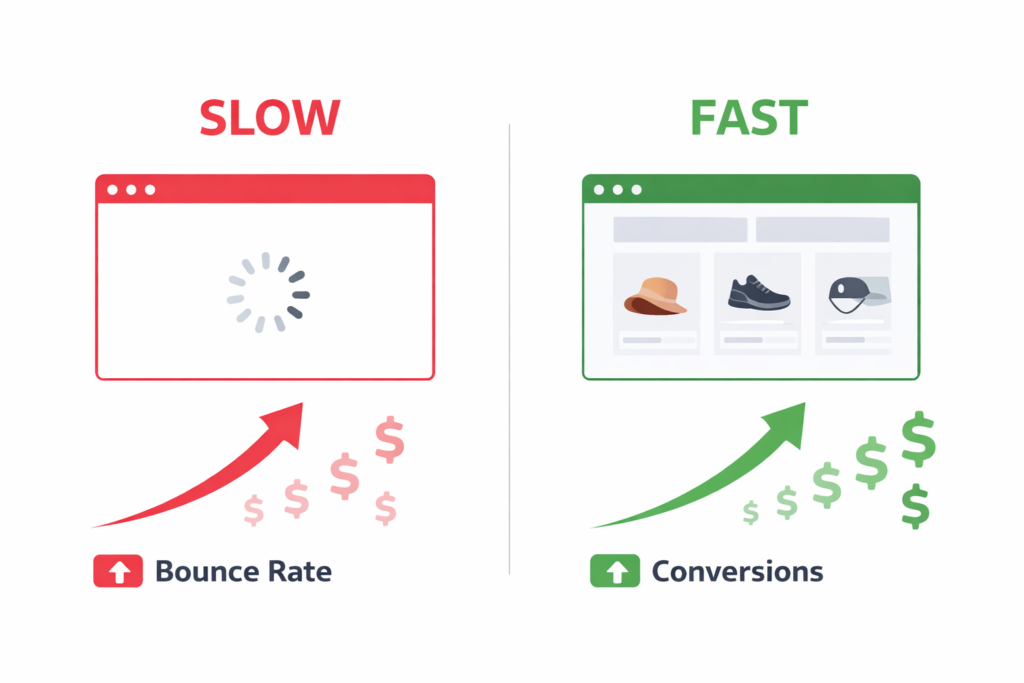
A one-second delay in page load time can cut conversions by up to 20%. For a Shopify store doing $50,000 a month, that is $10,000 left on the table every month because your site is slow.
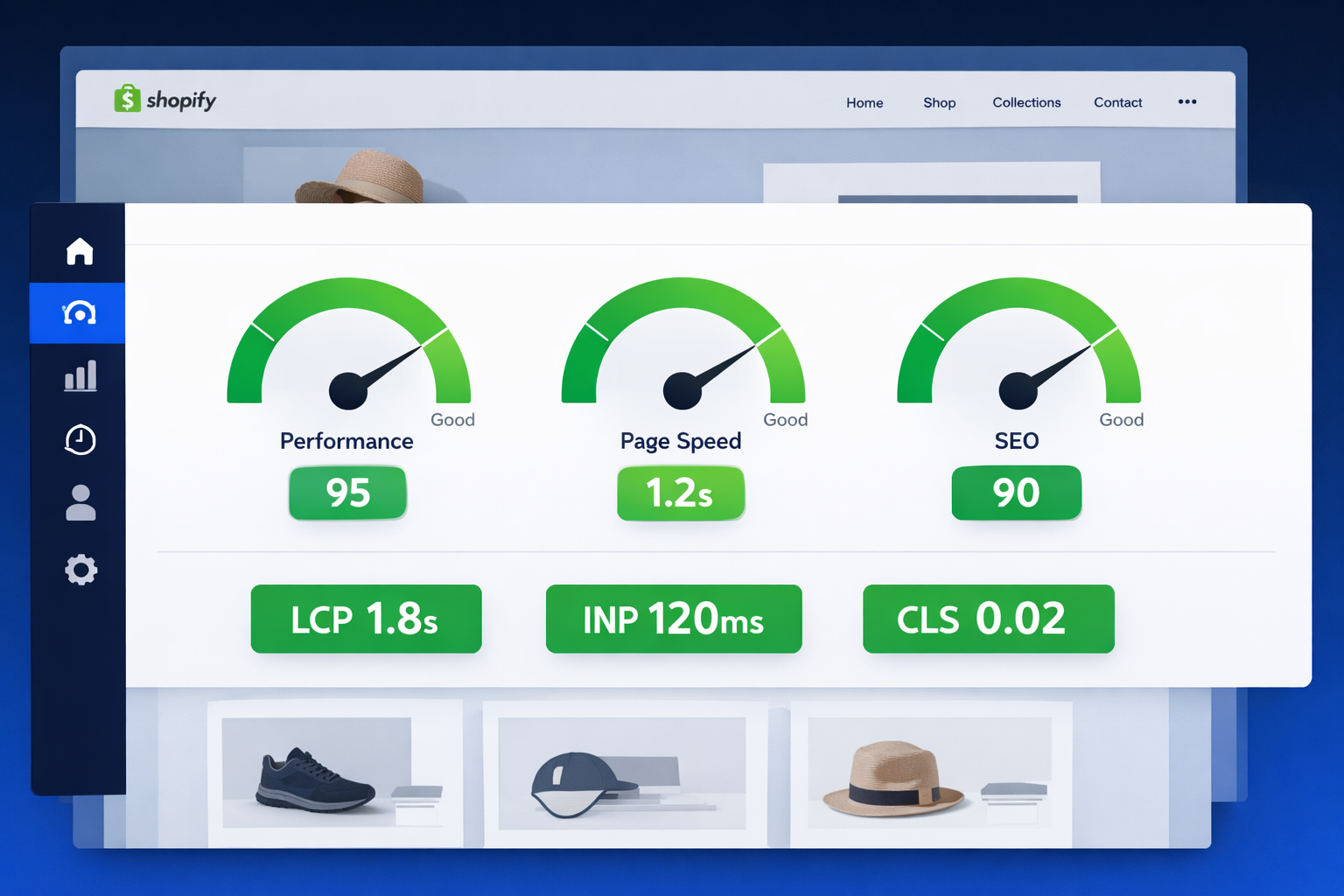
Shopify speed optimization is not a vanity metric. It directly controls how much you pay per acquisition, how much revenue you keep from paid traffic, and whether Google ranks you above or below your competitors.
Most guides tell you to “compress your images and remove apps.” That is surface-level advice. In this guide, we break down the 10 highest-impact Shopify speed fixes in order of ROI, with the exact steps to implement each one.
Why Shopify Site Speed Directly Affects Your Revenue
Before jumping into fixes, here is why speed matters more than most store owners realize.
Google uses Core Web Vitals as a ranking factor. Shopify stores that fail LCP, CLS, or INP thresholds get penalized in search results. That means less organic traffic from the keywords you are already ranking for.
But rankings are only part of the equation. Speed also impacts:
- Conversion rate — Portent found that pages loading in 1 second convert 2.5x higher than pages loading in 5 seconds
- Cost per acquisition — Slow landing pages lower your Google Ads Quality Score, which raises your CPC
- Return on ad spend — Every dollar you spend on Meta or Google ads performs worse on a slow page
- Bounce rate — 53% of mobile visitors leave a page that takes longer than 3 seconds to load (Google data)
- Average order value — Faster stores see higher cart completion and more add-to-cart actions
A slow Shopify store means you are paying more to acquire customers and converting fewer of them. Fixing speed is one of the highest-leverage changes you can make.
Step 1: Audit Your Shopify Store Speed the Right Way
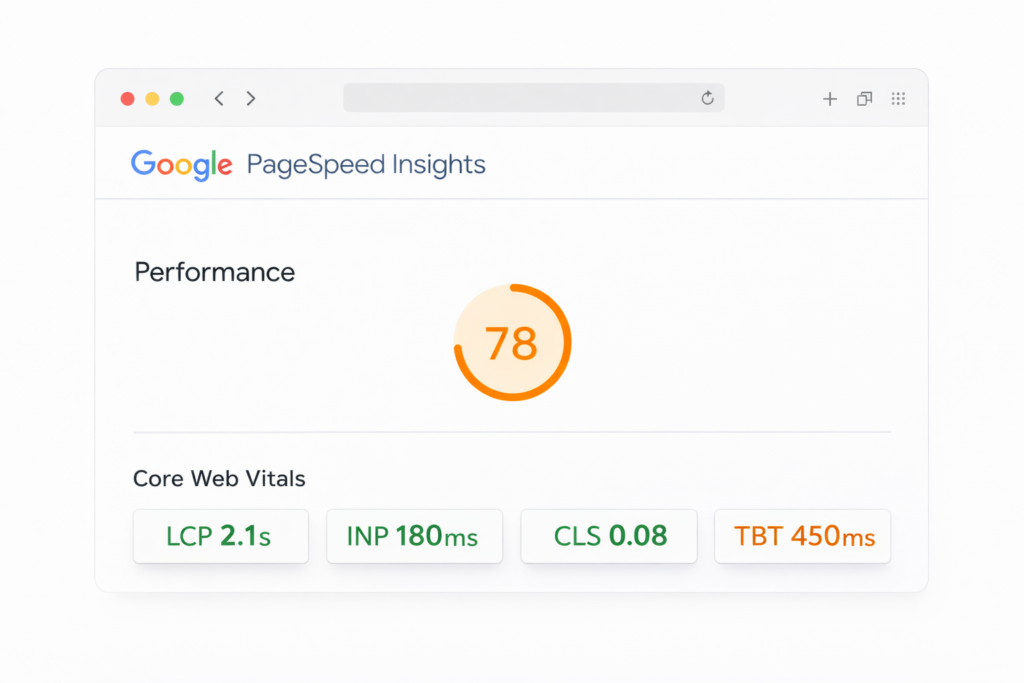
You cannot fix what you have not measured. Start with real performance data, not a single PageSpeed score.
Tools to use:
- Google PageSpeed Insights — Run your homepage, a collection page, and a product page separately
- GTmetrix — Gives waterfall charts that show exactly which resources are slow
- Shopify Theme Inspector — A Chrome extension that highlights Liquid rendering bottlenecks in your theme code
Metrics that matter:
- Largest Contentful Paint (LCP) — How fast the main content loads. Target under 2.5 seconds.
- Interaction to Next Paint (INP) — How responsive the page is when users tap or click. Target under 200ms.
- Cumulative Layout Shift (CLS) — How much the page jumps while loading. Target under 0.1.
- Total Blocking Time (TBT) — How long scripts block the main thread. Lower is better.
Do not chase a perfect 100 score. A store scoring 72 with a 1.8-second LCP will outperform a store scoring 95 with a 3.5-second real-world load time. Focus on what your customers actually experience.
Step 2: Optimize Images (the Fastest Win on Any Shopify Store)
Images are the single largest contributor to slow Shopify page loads. On most stores, images account for 50 to 80 percent of total page weight.
Here is exactly what to do:
- Convert every image to WebP format — WebP is 25 to 35% smaller than JPEG at the same quality. Shopify’s CDN serves WebP automatically if you use the
image_urlfilter in Liquid. - Compress before uploading — Use TinyPNG or Squoosh to get product images under 150KB and hero banners under 250KB.
- Set responsive sizes — Use the
srcsetattribute or Shopify’simage_urlwith width parameters so mobile devices do not download desktop-sized images. - Lazy load below-the-fold images — Add
loading="lazy"to every image that is not visible on the initial screen. - Prioritize the hero image — Your above-the-fold hero image should use
fetchpriority="high"and must not be lazy loaded. This is the image that determines your LCP score.
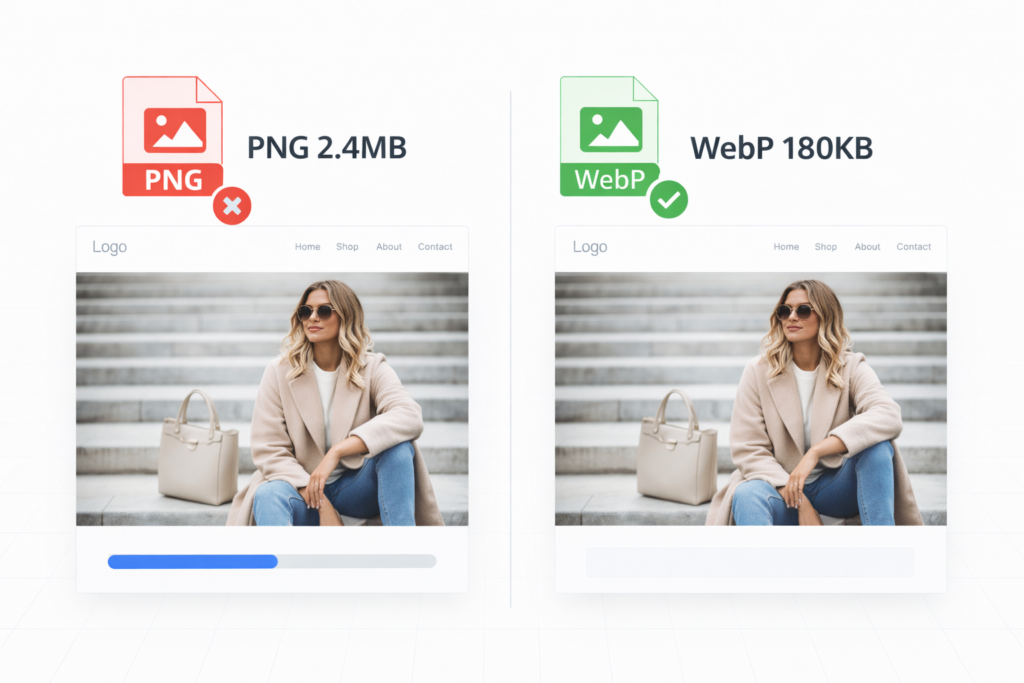
One client came to us with a 6.2-second LCP on their homepage. The hero banner was a 2.4MB uncompressed PNG. After converting to WebP and compressing to 180KB, LCP dropped to 1.9 seconds. No code changes required.
Step 3: Remove Unused Shopify Apps and Their Leftover Code
Every Shopify app you install injects JavaScript and CSS into your theme. The problem is that uninstalling an app does not always remove its code.
This is one of the most common causes of slow Shopify stores that owners never catch.
How to clean up:
- Go to Settings > Apps and sales channels and list every app
- Remove any app you are not actively using
- After uninstalling, open your theme code editor and search
theme.liquid,snippets, andassetsfor references to the removed app - Delete any leftover script tags, CSS files, or Liquid snippets
Warning sign: If your store has more than 12 installed apps, there is a near-certain chance you have redundant or conflicting scripts dragging down performance.
A good rule of thumb is that every app you remove saves 50 to 200ms of load time. Remove five unused apps and you could shave a full second off your pages.
Step 4: Reduce JavaScript and Third-Party Script Bloat
After images, JavaScript is the second biggest performance killer on Shopify stores. Every tracking pixel, chat widget, popup tool, and review app adds render-blocking or main-thread-blocking scripts.
The worst offenders:
- Meta Pixel, TikTok Pixel, and multiple analytics tags loading synchronously
- Live chat widgets that load a 300KB+ bundle on every page
- Heatmap tools running on pages where you are not even reviewing data
- Review apps loading carousels with heavy JavaScript frameworks
What to do:
- Audit every script — Open Chrome DevTools > Network tab, filter by JS, and sort by size. Identify what each script does.
- Defer non-critical scripts — Add the
deferattribute to any script that does not need to run before the page renders. - Load conditionally — Chat widgets only need to load on product and cart pages, not your homepage or blog. Use Liquid logic to conditionally include scripts.
- Consolidate tracking — Use Google Tag Manager with a single container instead of individual pixel scripts scattered across your theme.
The priority filter is simple: if a script does not directly increase revenue or is not legally required, it should not load on initial page render.
Step 5: Choose a Lightweight Shopify Theme (or Slim Down Yours)
Your theme is the foundation of your store’s performance. Some Shopify themes ship with 800KB+ of CSS and JS before you even add content.
- Start with a performance-focused theme — Dawn (Shopify’s default) is lightweight by design. If you are using a premium theme, check its total asset weight before committing.
- Remove sections you do not use — Every section in your theme loads its CSS and JavaScript whether it is active or not. Delete unused sections from the code.
- Avoid visual page builders — Tools like GemPages and PageFly add significant overhead. They are convenient, but they generate bloated HTML and load their own JS runtime on every page.
The fastest Shopify stores almost always use custom-built themes or heavily optimized versions of Dawn. If your current theme was chosen for aesthetics alone, a rebuild might deliver more ROI than any single marketing campaign.
Step 6: Fix Mobile Performance (Where Most of Your Revenue Lives)
Over 70% of Shopify traffic comes from mobile devices. If your mobile experience is slow, the majority of your visitors are getting a broken experience.
Mobile-specific optimizations:
- Reduce DOM complexity — Mobile browsers have less memory and processing power. Aim for fewer than 1,500 DOM elements per page.
- Optimize font loading — Use
font-display: swapand preload only your primary font weight. Every extra weight adds 15 to 50KB. - Remove heavy animations — Parallax scrolling, complex transitions, and autoplay videos destroy mobile performance.
- Test on real devices — Chrome DevTools throttling is useful but does not replace testing on an actual mid-range Android phone.
A common trap: your store can score 90+ on desktop PageSpeed and still score 45 on mobile. Always check mobile separately because that is what most of your customers see.

Step 7: Implement Correct Lazy Loading and Critical Resource Prioritization
The goal is to load what the user sees first as fast as possible and defer everything else.
Above the fold (load immediately):
- Hero image with
fetchpriority="high" - Primary navigation CSS
- Headline and CTA text
- No render-blocking scripts
Below the fold (lazy load):
- Product grid images
- Review sections
- Footer content
- Non-essential widgets
Use the native loading="lazy" attribute for images and iframes. For JavaScript-heavy sections below the fold, use Intersection Observer to load them only when the user scrolls near them.
This single change often improves perceived load time by 40 to 60 percent even when total page weight stays the same.
Step 8: Optimize Web Font Loading
Fonts are an overlooked performance bottleneck. A single Google Fonts request with three weights can add 150KB and block text rendering for 1 to 3 seconds.
- Self-host your fonts — Download the WOFF2 files and serve them from Shopify’s CDN instead of making external requests to Google Fonts or Adobe.
- Preload your primary font — Add a
preloadlink tag in yourtheme.liquidhead for the main font file. - Limit font weights — Use two weights maximum (regular and bold). Every additional weight adds network requests and file size.
- Use font-display: swap — This ensures text is visible immediately using a system font, then swaps in your custom font once it loads.
Step 9: Clean Up Redirects and Broken Requests
Every 301 redirect adds 100 to 300ms of latency. Broken requests (404s for images, scripts, or stylesheets) waste bandwidth and can block rendering.
- Audit redirects — Use Screaming Frog or Ahrefs to find redirect chains. Fix any chain with more than one hop.
- Fix broken internal links — Search your theme and content for links pointing to deleted products, pages, or images.
- Keep your URL structure clean — Avoid changing URLs after launch. If you must, set up a single redirect, not a chain.
Step 10: Use Shopify’s Built-In Performance Infrastructure
Shopify provides a global CDN, automatic SSL, and optimized hosting out of the box. Your job is to avoid undermining it.
What Shopify handles for you:
- Content delivery via the Fastly CDN with edge locations worldwide
- Automatic image CDN with on-the-fly resizing via the
image_urlLiquid filter - HTTP/2 and Brotli compression on all assets
- Managed hosting with automatic scaling during traffic spikes
Where store owners break it:
- Serving images from external sources instead of uploading to Shopify
- Adding external CSS or JS files hosted on slow third-party servers
- Overriding Shopify’s built-in lazy loading with custom JavaScript that performs worse
If Shopify already does something well, use their implementation. Only override it when you have measured a clear improvement.
Common Shopify Speed Mistakes to Avoid
- Installing 15+ apps without auditing their performance impact
- Using a heavy page builder for every page instead of native theme sections
- Uploading product images straight from a camera at 3000x4000px and 4MB
- Stacking five analytics and tracking pixels that all load synchronously
- Ignoring mobile performance while optimizing only for desktop scores
- Leaving orphaned app code in your theme after uninstalling apps
- Loading live chat, popups, and review widgets on every page instead of conditionally
Speed Optimization Is Revenue Optimization
This is not a technical exercise. Every millisecond you save translates directly into more revenue.
A faster Shopify store means:
- Higher conversion rates across every traffic source
- Lower cost per click on Google and Meta ads
- Better organic rankings from passing Core Web Vitals
- Higher average order value from smoother checkout experiences
- More scalable growth because your infrastructure is not the bottleneck
Speed is one of the few optimizations that improves every single stage of your funnel, from the first ad click to the final checkout confirmation.
Get a Free Shopify Speed and Conversion Audit
At Site OptimizR, we do not just improve speed scores. We optimize for revenue.
We combine Shopify speed optimization, conversion rate optimization, and UX improvements so your store loads faster and converts better.
Here is what you get in a free audit:
- A full Core Web Vitals breakdown for your homepage, collection pages, and product pages
- Identification of the exact scripts, images, and theme code slowing your store down
- A prioritized action plan ranked by revenue impact, not just technical severity
Request your free audit and we will show you exactly where your Shopify store is losing money